 Polytoolhub
What is PolyGun?
PolyGun combines manual trading, wallet copying and rule-based crypto entries in one Telegram bot. The main menu separates available balance, position value and funds in limit orders, then links to markets, portfolio, copying and settings. Its copy workflow includes a seven-step review before activation, while confirmation modes determine whether a manual market order executes immediately or asks for confirmation.
Who it is for
- Telegram users who want manual orders and copy trading together
- Traders comparing frequently copied wallets
- Users who want position and PnL monitoring on mobile
Features and coverage
- Available on
- Telegram
- Markets & venues
- Polymarket
- Research topics
- Copy trading, Order execution, Portfolio
- Telegram market trading
Search for a market or paste its Polymarket link, then use market or limit buy and sell controls.
- Three copy sizing modes
Use a fixed USDC amount, a percentage of the leader’s trade or a portfolio-weighted allocation.
- Copy exposure controls
Set a maximum per-trade amount, entry-price range and slippage tolerance; the management panel also includes a daily-limit control where enabled.
- Copy management
Edit future sizing, pause copying or delete the task from Home → Copy Trade → trader → Manage.
- Copy notifications
New copies are muted by default. Use Unmute in the management panel to receive execution updates.
- Market-order confirmation modes
Cautious confirms every market order; Standard confirms orders above the configured threshold; Expert executes without a confirmation prompt.
- TP/SL and presets
Set automatic exits for positions and manage active or closed TP/SL orders.
- Crypto AutoPilot
Configure assets, timeframes, direction, amount, an entry window, a price range and optional TP/SL.
- Portfolio and orders
Review positions and PnL separately from pending limit orders and reserved balance.
Workflows with PolyGun
Configure a copied wallet
Open Copy Trade → Add Copy Trade, enter the leader’s public wallet and nickname, choose sizing, set the cap and entry range, then choose slippage and review the complete summary. Unmute the task if you want alerts.
Control confirmation behavior
Open Settings and select the trading mode. In Standard, set the dollar threshold; in Cautious, every market order asks for confirmation. The threshold does not apply in Expert.
Build a crypto entry rule
Open AutoPilot → New. Select BTC, ETH, SOL or XRP and the offered 5-minute, 15-minute, hourly or four-hour rounds, then set direction, amount, final-seconds entry window, price range and optional exits.
Pause a strategy
Pause the copy or automation you want to stop, then inspect its existing positions separately. Stopping future copying is not a position-closing instruction.
Pricing and total cost
The current documentation describes a probability-dependent dynamic fee curve. It does not publish a numerical curve on that page; use the bot’s quote for the selected trade.
Fees and usage costs
- Fees vary with the selected outcome’s probability.
- The earlier flat 1% description on the marketing site conflicts with the newer dynamic-fee guide and is not used as the current universal rate.
Access: No separate subscription price is specified in the guide.
Getting started
Before you start: Pausing or deleting a copy task stops future copying and leaves existing positions open.
- Open the official PolyGun Telegram bot and start its account flow.
- Open Wallet and use the funding instructions shown for the selected asset and network.
- Choose a market-order confirmation mode in Settings.
- For copying, complete all seven setup steps and inspect the final summary.
- Turn on copy notifications from Manage → Unmute if you need execution alerts.
- Review positions, limit orders and available balance after execution.
Useful links
What to check
- Pausing or deleting a copy task stops future copying and leaves existing positions open.
- New copy tasks are muted until notifications are enabled.
- Expert mode removes market-order confirmations; Standard’s documented default threshold is $100.
- Any Price removes the copy slippage ceiling; Exact Price can skip entries after a move.
- AutoPilot currently documents crypto; its sports category is marked coming soon.
- AutoPilot Both can buy both sides when conditions match; Either selects the first matching side.
A closer look
Ratings & reviews
User reviews 0
The main score switches to user ratings after 5 published reviews.
A specific example helps the next person choose the right tool.
Write a review
How was your experience with PolyGun?
Share what you used, what worked and what could be better. We confirm your email and review the submission before publishing.
To submit a review, email info@polytradingbot.com with the tool name, your rating and your experience. Enable JavaScript to prepare a draft here.
Related tools
Browse category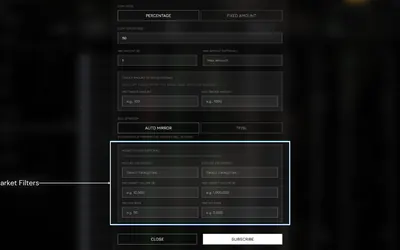

Research wallets and trade through Telegram or the web, with percentage/fixed copying, source-trade filters and distinct copy and Autopilot exit behavior.
- Trading mode Manual · Live automation
- Access Web · Telegram
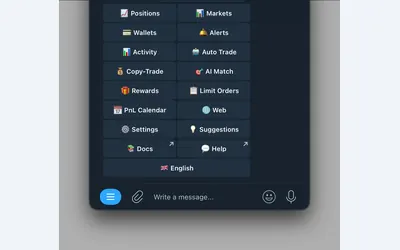

Manage wallet copying, alerts and automated strategies from Telegram or a connected web terminal.
- Trading mode Manual · Live automation
- Access Web · Telegram
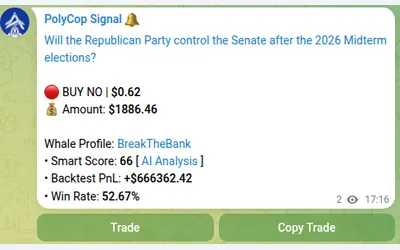

Copy Polymarket wallets in Telegram with market or limit orders, granular exposure limits, order-book pricing and a separate BTC automation mode.
- Trading mode Manual · Live automation
- Access Telegram
Frequently asked questions about PolyGun
Why did a copied trade produce no notification?
Copy tasks start muted. Open the trader’s management panel and tap Unmute.
Does deleting a copy close its positions?
No. Existing positions remain open.
What is the difference between percentage and portfolio-weighted copying?
Percentage scales the leader’s individual trade amount; portfolio-weighted copying matches the share of the leader’s portfolio used.
How does Standard confirmation work?
Market orders above the configured dollar threshold require confirmation; the documented default is $100.
Can AutoPilot monitor sports?
Its setup guide marks sports as coming soon and lists crypto as available.
What fee should I expect?
The current guide uses a dynamic probability-dependent curve; inspect the bot’s actual quote for the trade.